Form on your website
Put a Kaneo form on your website, or let your own form send enquiries to Kaneo.
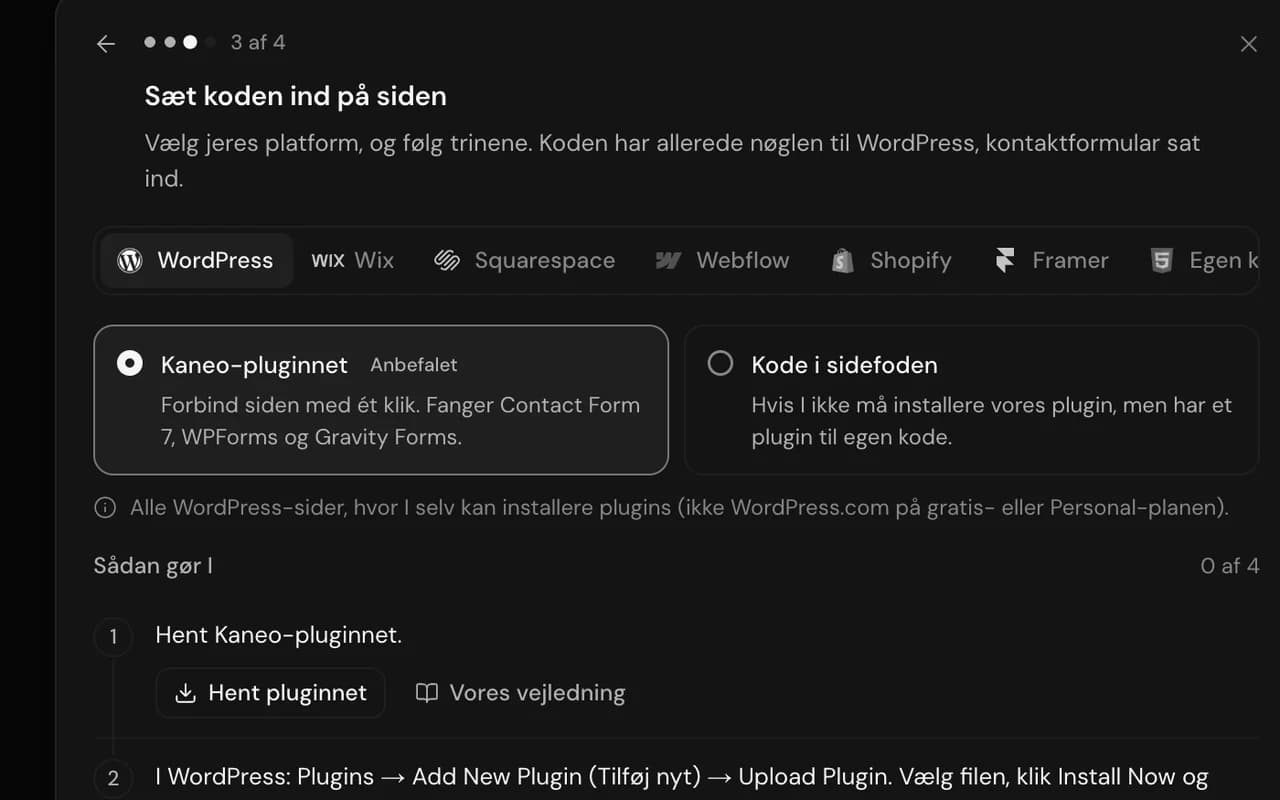
There are two ways to get enquiries from your website into Kaneo. Pick the one that suits you:
- A new form from the form builder. Kaneo makes the whole form, with fields, look and sending. You paste it where it should appear.
- Your own form. You already have a contact form. A small script listens to it and sends what the customer writes to Kaneo.
If you have a WordPress site, the plugin is the easiest option.
A new form from the form builder
Build the form under Opsætning → Integrationer → Hjemmeside og formularer → Tilføj kilde → Byg en formular ("Setup → Integrations → Website and forms → Add source → Build a form"), or open one you already have with Redigér formular ("Edit form"). See The form builder.
Click Kopiér kode ("Copy code") in the top right of the builder.
Paste the code into the page where the form should appear. It has its own styling and sends by itself.
Send a test from the page, ideally with your own email. It shows up as an enquiry shortly after.
If you change the form in the builder, copy the code again and paste it into the page again.
Your own form
Go to Opsætning → Integrationer → Hjemmeside og formularer ("Setup → Integrations → Website and forms") and click the form in the list. If you don't have one yet, press Tilføj kilde ("Add source") and choose Kontaktformular på jeres hjemmeside ("Contact form on your website").
Under Sådan installerer du ("How to install"), choose Kode på siden ("Code on the page") and click Kopiér kode ("Copy code"). You can also choose Kopiér indlejringskode ("Copy embed code") in the three-dot menu.
Paste the code into the page with your contact form, just before
</body>.Send a test from the page.
The script uses each field's name as its name in the enquiry, for example email and message. Other fields come through too. If you want them shown in a structured way in the enquiry, create a field with the same name on the Egne felter ("Custom fields") tab.
Where do I paste the code?
It depends on what your website is built with. In short:
- Your own HTML site, paste the code into the HTML.
- Wix, Add → Embed Code → Embed HTML. Custom code requires a paid Wix plan with your own domain.
- Squarespace, add a Code block to the page. Requires a plan that allows custom code.
- Shopify, add a Custom Liquid section to the page.
- Webflow, drag in a Code Embed element. Custom code requires a paid Webflow plan.
- WordPress, add a Custom HTML block, or use the plugin.
If you're not sure, click Spørg Neo ("Ask Neo") under Sådan installerer du ("How to install") once you've opened the form, or Sæt på siden ("Add to site") in the form builder. Neo shows you where the code goes on your particular site.
Allowed domains
Under Tilladte domæner ("Allowed domains") you can enter the addresses the form may send from, for example https://yourcompany.com. Empty means the form works on every domain.